فیلیمو برای تلویزیونهای ال جی | Filimo for LG TV (webOS)

فیلیمو برای تلویزیونهای ال جی
Filimo for LG TV (webOS)


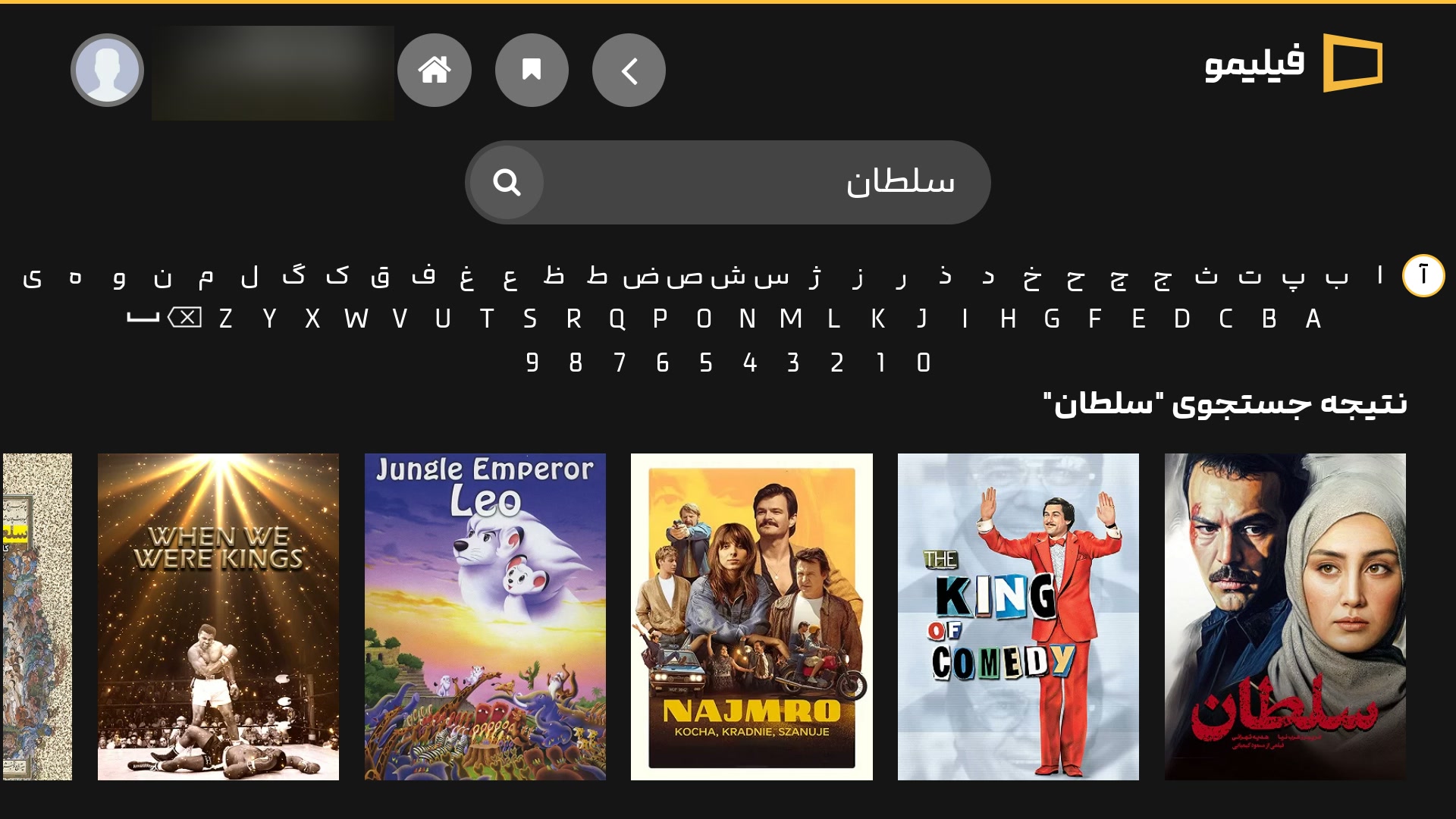

آیا این برنامه رسمی است؟
نه. این یک پروژهی شخصی و غیررسمی است و هیچ ارتباطی با شرکت فیلیمو یا ال جی ندارد. برنامه فقط نسخهی تلویزیونی خود سایت فیلیمو را باز میکند و برای تماشا به اشتراک فیلیمو نیاز دارید.ویدیو پخش نمیشود یا برنامه باز نمیشود.
- مطمئن شوید اینترنت تلویزیون وصل است. - اگر VPN یا پروکسی روی مودم یا تلویزیون روشن است، خاموشش کنید؛ فیلیمو معمولاً فقط با اینترنت ایران کار میکند. - برنامه را کامل ببندید و دوباره باز کنید.فیلیمو بعد از چند روز از تلویزیون پاک شد.
اگر از روش ۱ (حالت توسعهدهنده) استفاده کردهاید، زمان حالت توسعهدهنده تمام شده است. Developer Mode را دوباره روشن کنید، برنامه را دوباره نصب کنید و از این به بعد زمان را با دکمهی **Extend** تمدید کنید.کیبورد فارسی کجاست؟
در صفحهی **جستجو**، زیر کادر جستجو. حروف فارسی، انگلیسی و اعداد را با دکمههای جهت ریموت انتخاب و با **OK** تایپ کنید.چطور برنامه را حذف کنم؟
در فهرست برنامههای تلویزیون، روی آیکون Filimo دکمهی OK را نگه دارید و گزینهی حذف را بزنید. در Homebrew Channel یا Dev Manager هم گزینهی حذف (Uninstall) وجود دارد.نسخهی جدید را چطور نصب کنم؟
- **روش ۱:** فایل `.ipk` جدید را دانلود کنید و مثل قبل با Dev Manager نصب کنید. لازم نیست نسخهی قبلی را حذف کنید. - **روش ۲:** در Homebrew Channel روی Filimo بروید و دوباره Install را بزنید.English
Filimo for LG TV is an unofficial app that brings Filimo to LG Smart TVs running webOS, on both rooted and non-rooted TVs.
Features
- ✅ Filimo’s own TV interface, made for the remote control
- ✅ Persian on-screen keyboard on the search page (LG’s built-in keyboard usually has no Persian)
- ✅ Easy sign-in with a code from your phone
- ✅ The remote’s Back button works as expected
- ✅ Free; you only need a Filimo subscription
Download
Get the latest version from the Releases page. The file you need is the one ending in .ipk.
Which installation method is for me?
| Your TV | Method |
|---|---|
| Not rooted (a regular TV) | Method 1: Install with a computer |
| Rooted, with the Homebrew Channel app | Method 2: Install from the TV |
Method 1: Install with a computer (non-rooted TVs)
This uses LG’s official Developer Mode. It’s a built-in LG feature and does no harm to your TV. Your TV and computer must be on the same Wi-Fi/router.
Step 1: Create a free LG developer account
- Go to webostv.developer.lge.com on your computer or phone.
- Click Sign In, create a new account and confirm your email.
Step 2: Turn on Developer Mode on the TV
- Open the LG Content Store on your TV.
- Search for Developer Mode and install it.
- Open the Developer Mode app and sign in with the account you created.
- Turn on Dev Mode Status. The TV will restart once.
- Open Developer Mode again and turn on Key Server too.
- Keep this screen open: you’ll need the IP address and the Passphrase shown on it.
Step 3: Install Dev Manager on your computer
- Download and install webOS Dev Manager from this page (Windows, macOS and Linux).
- Open it and add your TV (Add Device):
- Choose Developer Mode as the device type.
- Enter the TV’s IP address.
- Enter the Passphrase from the TV screen.
- If everything is right, the TV shows as connected.
Step 4: Install Filimo
- Download the
.ipkfile from the Releases page. - In Dev Manager, go to Apps.
- Click Install and choose the downloaded
.ipkfile (or drag it into the window). - Done! The Filimo icon appears in your TV’s app list.
⚠️ Important: Developer Mode only stays on for a limited time; the remaining time is shown in the Developer Mode app. When it runs out, apps you installed yourself (including Filimo) are removed. Open the Developer Mode app every now and then and press Extend.
Method 2: Install from the TV with Homebrew Channel (rooted TVs)
If your TV is rooted and has the Homebrew Channel app, you can install Filimo without a computer. Updates come through the same place.
ℹ️ Homebrew Channel isn’t on LG TVs by default; it gets installed when a TV is rooted. If you don’t see it in your TV’s app list, use Method 1.
- Open Homebrew Channel on your TV.
- Go to the gear icon (Settings) at the top.
- Choose Add repository at the bottom.
-
Type this address with the remote and press Add repository:
https://hamedafra.github.io/filimo-webos/apps.json - Go back to the Homebrew Channel home screen. Filimo is now in the list.
- Open Filimo and press Install.
- Done! The Filimo icon appears in your TV’s app list.
💡 When a new version is released, open Filimo in Homebrew Channel and press Install again.
First use: signing in to Filimo
- Open Filimo on your TV and choose Sign in (ورود).
- A code appears on the TV screen.
- On your phone or computer, go to filimo.com/activate, sign in to your Filimo account and enter the code.
- Your TV signs in automatically. 🎬
FAQ
Is this app official?
No. This is an unofficial personal project, not affiliated with Filimo or LG. The app simply opens Filimo's own TV website, and you need a Filimo subscription to watch.Videos don't play or the app doesn't open.
- Make sure the TV is connected to the internet. - If a VPN or proxy is on (on the router or TV), turn it off; Filimo usually only works with an Iranian internet connection. - Fully close the app and open it again.Filimo disappeared from my TV after a few days.
If you used Method 1, the Developer Mode time ran out. Turn Developer Mode back on, install the app again, and from now on press **Extend** regularly.Where is the Persian keyboard?
On the **search** page, below the search box. Pick Persian letters, English letters or numbers with the arrow buttons and press **OK** to type.How do I uninstall it?
In your TV's app list, hold OK on the Filimo icon and choose remove. Homebrew Channel and Dev Manager also have an Uninstall option.How do I update?
- **Method 1:** Download the new `.ipk` and install it with Dev Manager as before. No need to remove the old version. - **Method 2:** Open Filimo in Homebrew Channel and press Install again.Disclaimer: Filimo and the Filimo logo belong to their respective owner. This project is not affiliated with, endorsed by, or sponsored by Filimo or LG Electronics. · Developers: run python3 build.py to build the .ipk from the app/ folder.